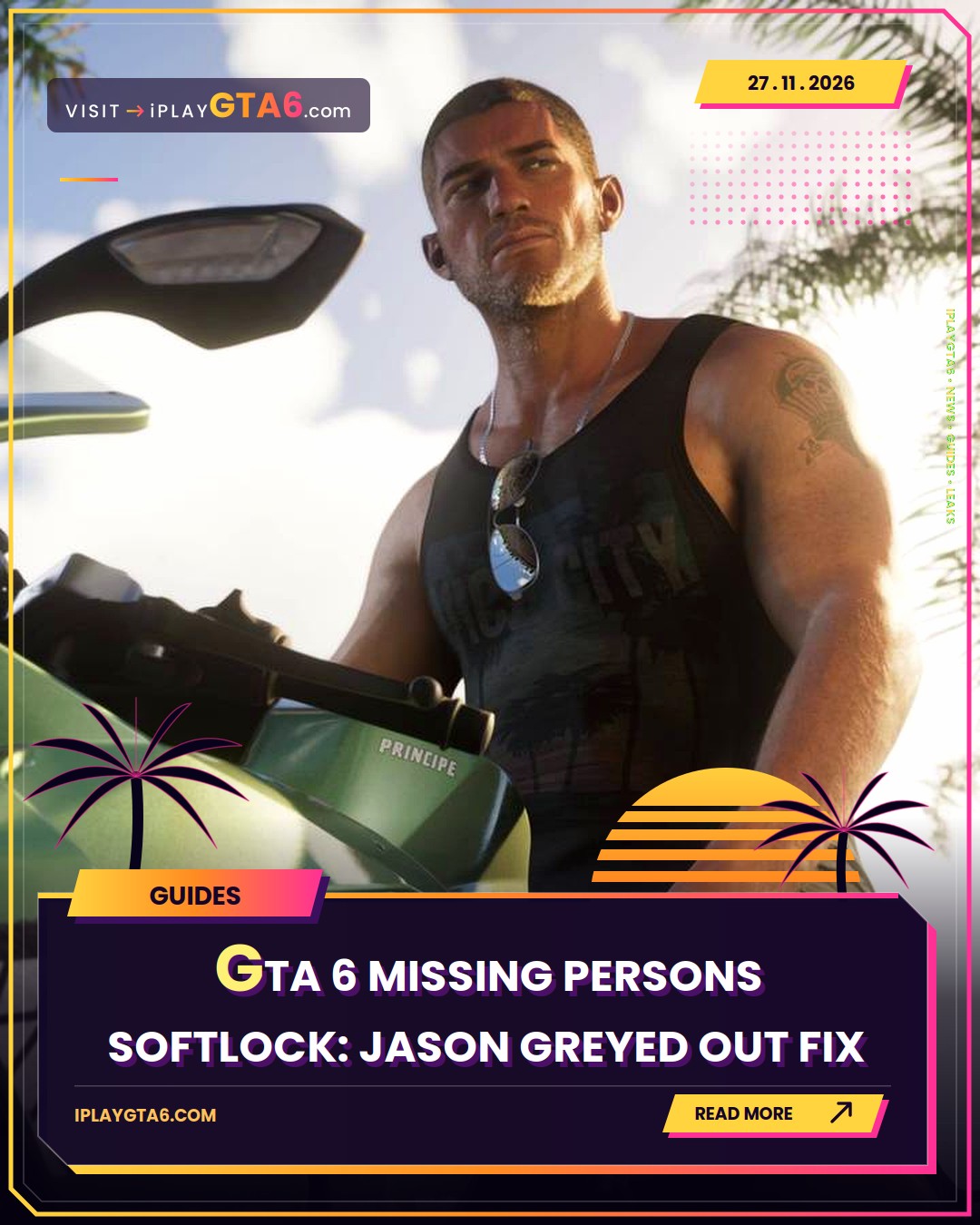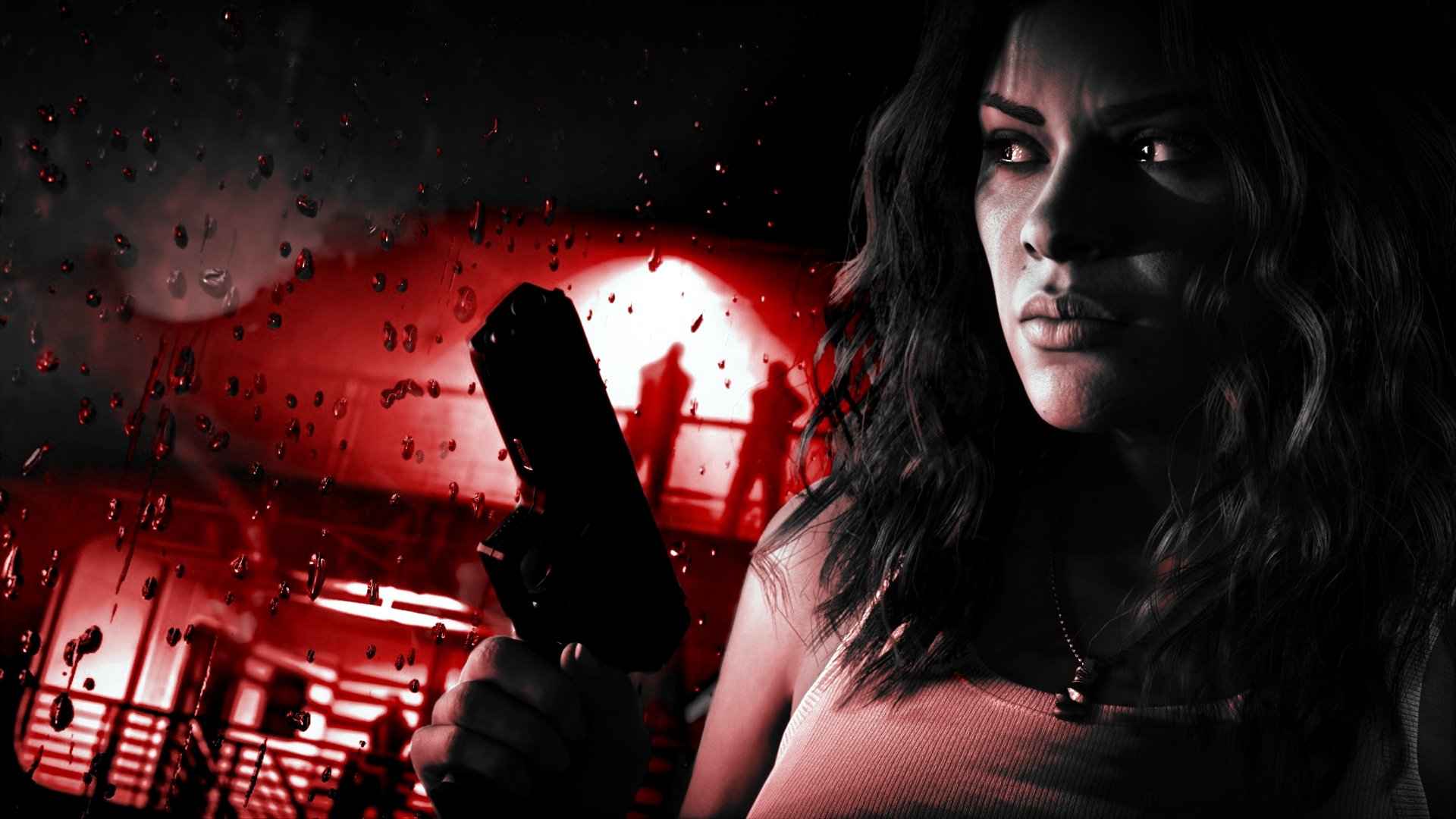
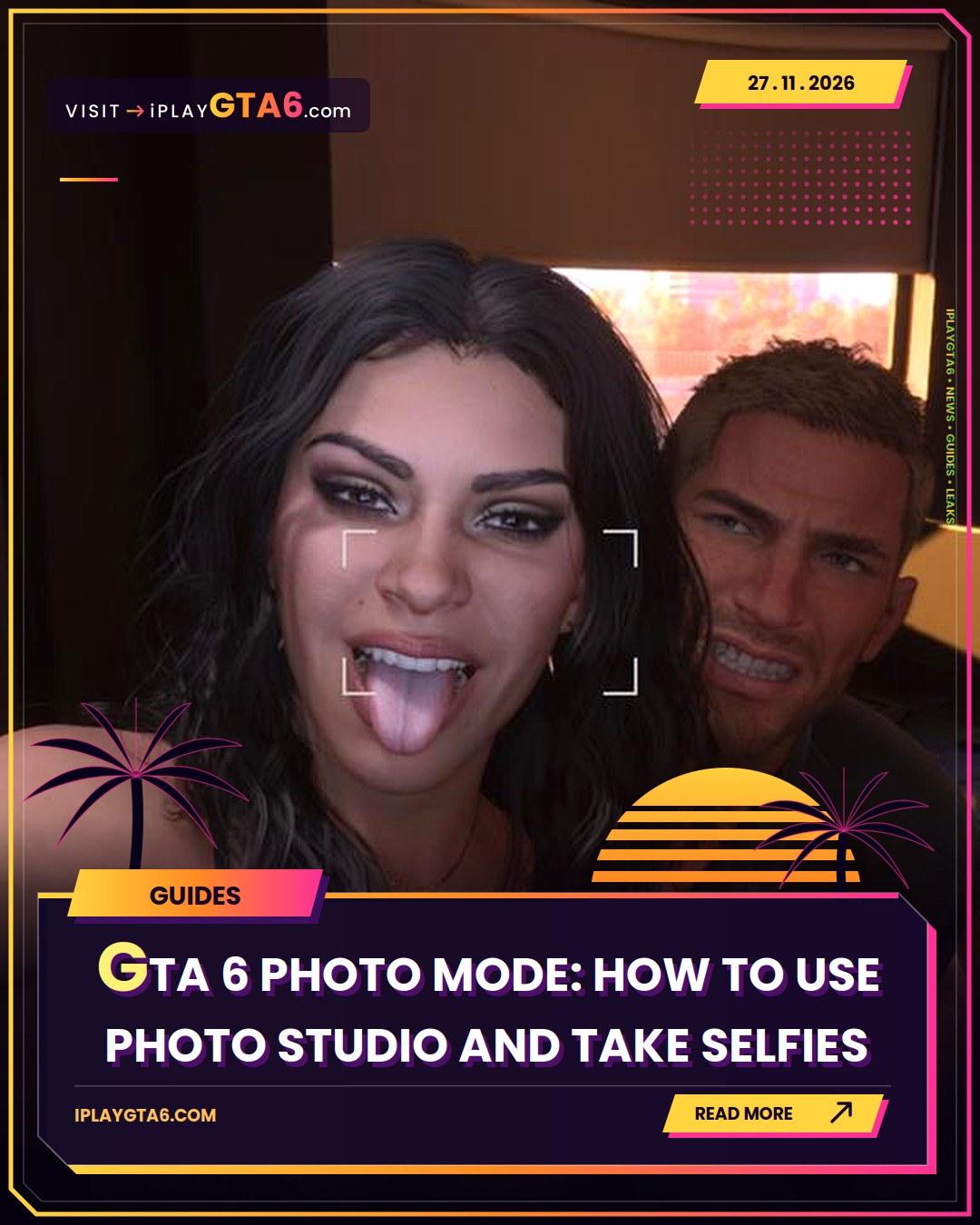
Leonida is worth photographing. A sunset over Ocean Beach, a stunt jump frozen mid-air, Jason and Lucia squeezed into a selfie: GTA 6 gives you two cameras for all of it. Photo Studio is the full photo mode, opened from the pause menu, and the phone camera is the quick one for selfies on the move. Both are available almost from the start, and neither needs a mission to unlock.
This guide covers both. You will learn how to open Photo Studio, what each of its five tabs does, how to light a shot and pick a filter, and how to take selfies with poses and expressions on the phone. Our earlier Photo Studio guide covers the basics too, while this one goes deeper on the tabs and the selfie camera.
How to Open Photo Studio in GTA 6
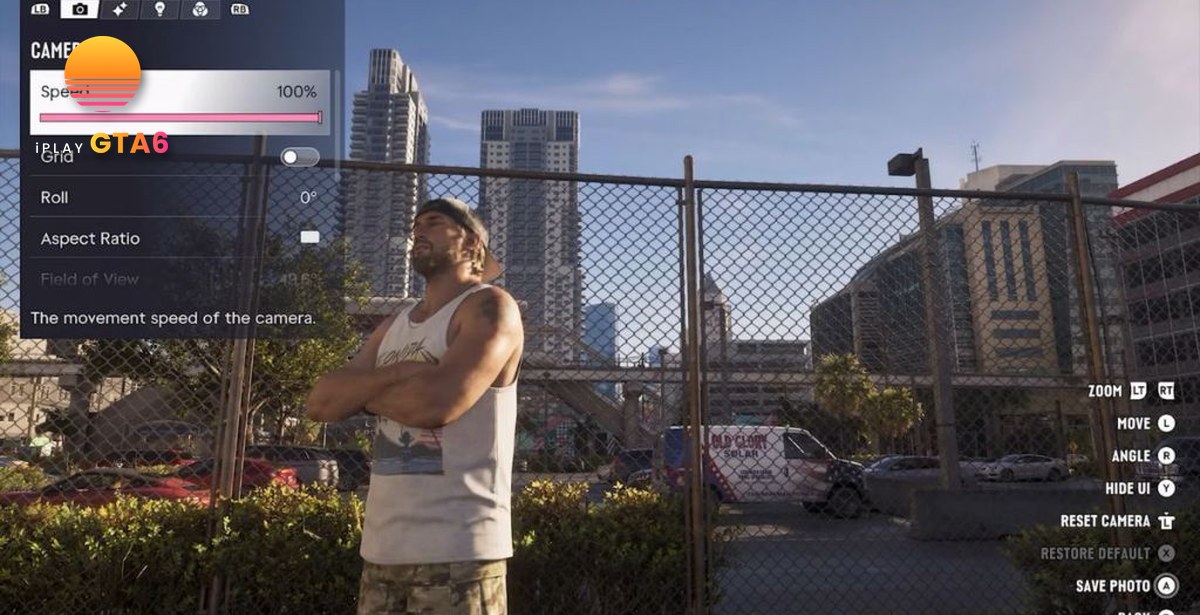
Photo Studio is available right from the start, from the moment you take control of Lucia in the prologue. You do not need to complete any mission to unlock it. Pause the game with the Options button on PS5 or the Menu button on Xbox, then select Photo Studio from the pause menu. The shortcut is faster: press Square on PlayStation or X on Xbox.
You can also open Photo Studio during cutscenes, though some functions are limited there. Settings that are not available in a cutscene show as Currently Unavailable, so if a tab looks locked, that is why. Once you are inside, adjust the camera, effects, lighting and filters, then press Hide UI with Triangle on PlayStation or Y on Xbox and take a clean picture with your console screenshot button, or choose Save Photo.
The Five Photo Studio Tabs, Explained
Photo Studio has five tabs, and each one does a different job. The Camera tab lets you rotate and zoom in and out, and you can turn off depth of field or make your character invisible, which is the trick for clean scenery shots with no hero in the frame. The Effects tab tweaks the look of the image itself: exposure, contrast, tint, bloom and more. Small moves here matter more than big ones, so change one slider at a time.
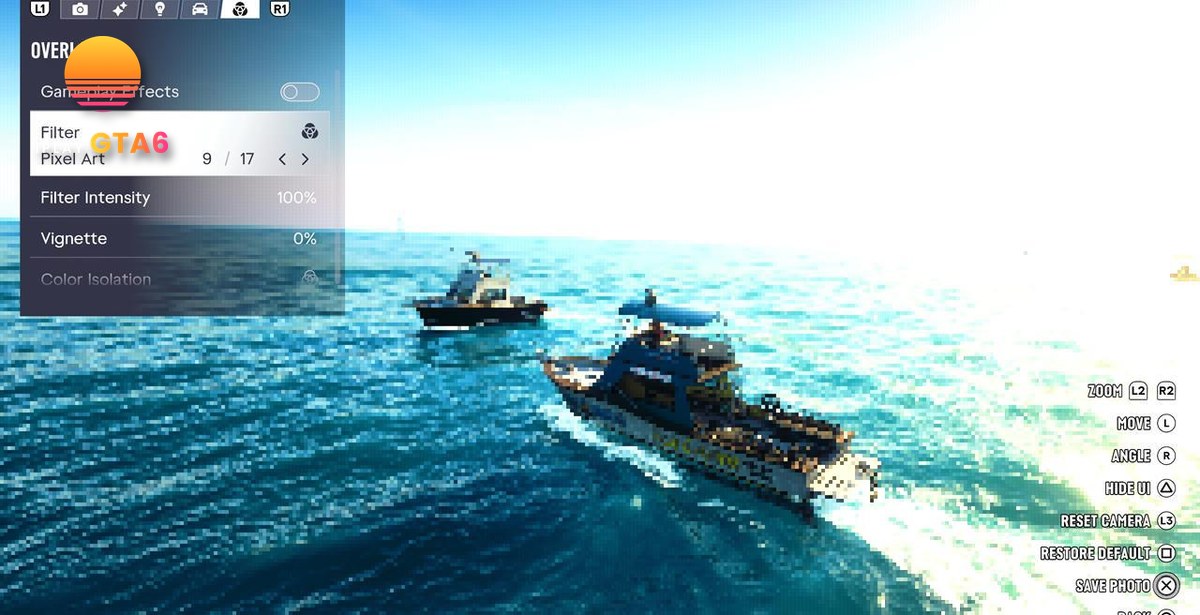
The Lighting tab is where the drama comes from. You can place up to five different light sources, adjust their colours and intensity, and pick presets such as stage lights and camera flashes. Each light has its own intensity and range, so you can key your subject from one side and wash the background from the other. The Vehicle tab toggles the lights on your car, which matters for night shots. The Overlay tab holds the vignette and the filter intensity, plus the filters themselves.
Pause the game and open Photo Studio, or press Square on PS5 and X on Xbox.
Frame the shot in the Camera tab, then set exposure and contrast in Effects.
Add up to five lights in the Lighting tab and pick a filter in Overlay.
Press Triangle or Y to hide the interface, then save the photo or take a screenshot.
Filters and Light: Make the Shot Yours
The Overlay tab is where Photo Studio gets playful. Three filters stand out. Cartoon Universe adds a slightly cell-shaded look, Found Footage makes the picture grainy and glitchy like an old horror tape, and Pixel Art turns the scene into a retro 8-bit image. The filter intensity slider lets you pull any of them back, so the effect reads as a style choice rather than a gimmick. A vignette darkens the corners and pulls the eye to the middle of the frame.
Two limits are worth knowing before you plan a shoot. Photo Studio does not let you change the time of day or the weather, so a golden-hour shot means waiting for golden hour in the game. And the five-light limit is a hard cap, so spend your lights on the subject first and the background second. The phone camera has its own filter set, with 17 filters on the rear camera, plus grid lines and up to 5x zoom.
How to Take Selfies With the Phone Camera
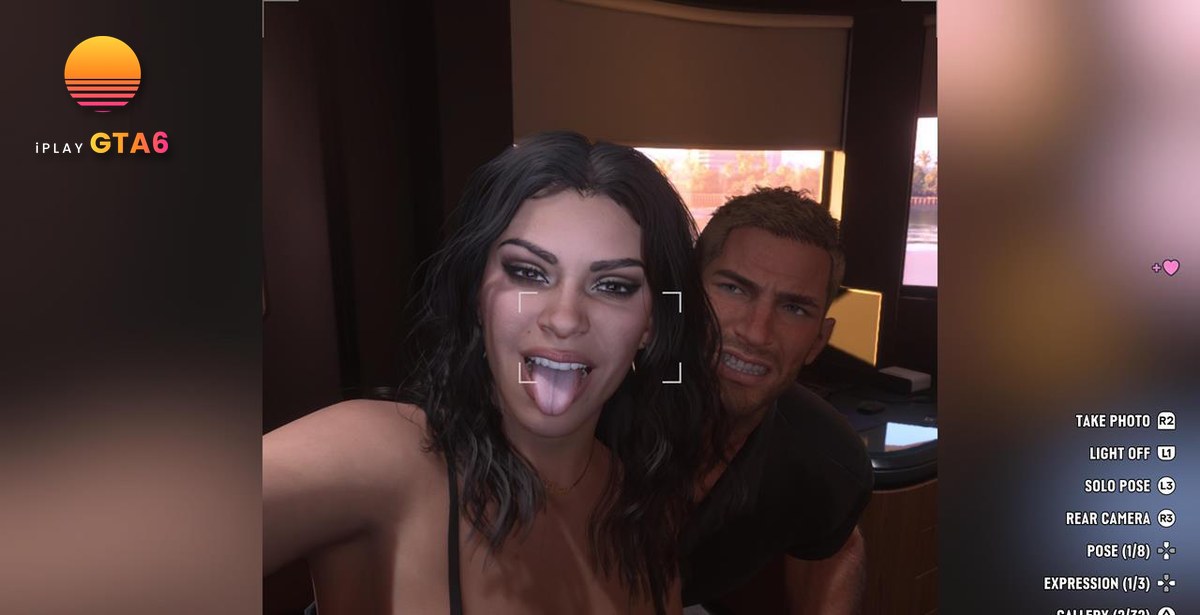
Photo Studio is for composed shots. For selfies, use the phone. The camera becomes available after the prologue, once you are playing as Jason, and it lives in the Camera app on the in-game smartphone. Open the phone with D-pad Up, pick the Camera app, the third icon in the first row, and switch from the rear camera to the front-facing selfie camera. Frame the shot and choose Take Photo.
The selfie camera has more personality than the main one. You can pick from six different poses and seven facial expressions for Jason, and change your partner's pose when you take selfies together. If Lucia is with you while you play as Jason, or Jason is with you while you play as Lucia, your partner can pose with you. The rear camera is the serious one: up to 5x zoom, grid lines for straight horizons, and 17 filters to match the mood of the scene.
Where Your Photos Go: Gallery and Snapmatic
Photos you take are not lost when you close the camera. Open the Gallery app on the phone to look back through everything you have captured. The phone is also home to Snapmatic, the in-game social media app, which is back in GTA 6. There you can browse posts, like photos, read comments, and mark locations on your map, so a good shot can double as a bookmark for a place you want to return to.
That makes Photo Studio more than a toy. Scout a location in free roam, mark it in Snapmatic, come back at the right hour, and set up the shot with lights and a filter. The best GTA 6 photos are planned, not snapped in passing. And if a scene deserves a second try, remember that Photo Studio works in cutscenes too, with fewer options, so you can catch story moments as well as free-roam ones.
Quick Questions
How do I open Photo Mode in GTA 6?
Pause the game and select Photo Studio, or press Square on PS5 and X on Xbox. It is available from the prologue, with no mission needed to unlock it.
Can I use Photo Mode during cutscenes?
Yes, but some settings are limited. Unavailable options show as Currently Unavailable while a cutscene is playing.
How many filters does GTA 6 Photo Mode have?
The phone camera offers 17 filters on its rear camera. Photo Studio has its own filter set in the Overlay tab, including Cartoon Universe, Found Footage and Pixel Art.
How do I take a selfie in GTA 6?
Open the phone with D-pad Up, pick the Camera app, switch to the front-facing camera, and choose Take Photo. You can pick from six poses and seven facial expressions.
Can I change the time of day in Photo Mode?
No. Photo Studio does not let you change the time of day or the weather. Wait for the light you want in the game itself.
Open Photo Studio, hide the interface, and take the shot. Leonida does the rest.