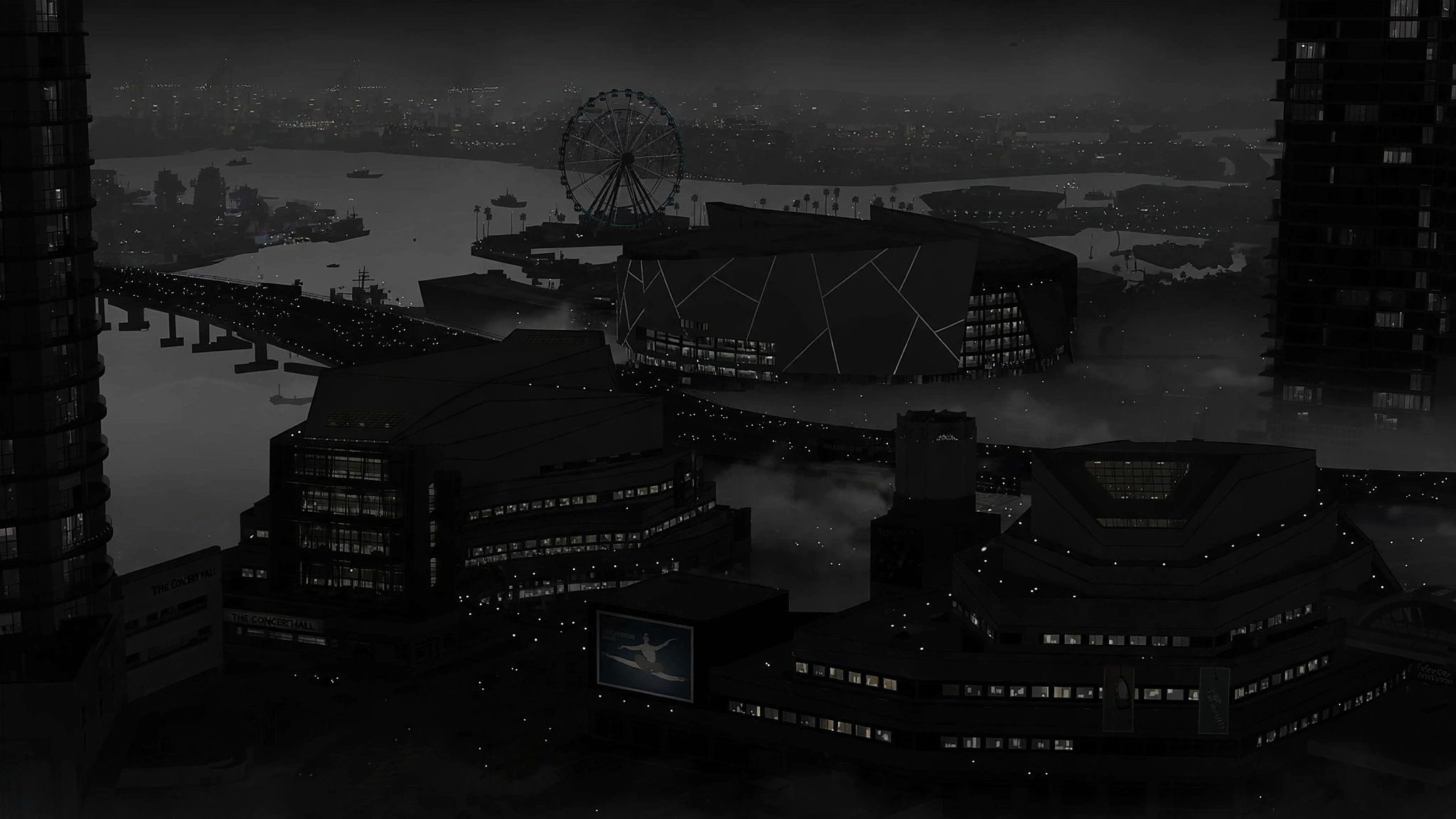

Leonida is big. Driving from Port Gellhorn to Vice City takes a while, and not every journey needs your foot on the accelerator the whole way. GTA 6 has an Auto Drive mode that lets the game take the wheel and drive you to your destination while you watch the scenery through the cinematic camera.
The catch is that the game never tells you it exists. There is no tutorial, no prompt, and no menu entry that explains it. Here is how to switch it on, how the three speeds work, when it helps, and when you should keep your hands on the wheel.
What Auto Drive Is
Auto Drive is part of the Cinematic Mode camera. Once it is active, Jason or Lucia takes control of the vehicle and drives it to the destination you marked on the map, following the route while you watch. The driver follows traffic rules, stops at red lights, and avoids reckless driving. You never have to steer, accelerate or brake manually.
It is not fast travel. Auto Drive is much slower than driving yourself, because the AI drives like the rest of the traffic: it keeps to its lane, obeys traffic lights and stops at stop signs. It does not need a taxi or the RydeMe app, and it is free, which is the trade. You pay in time instead of money.
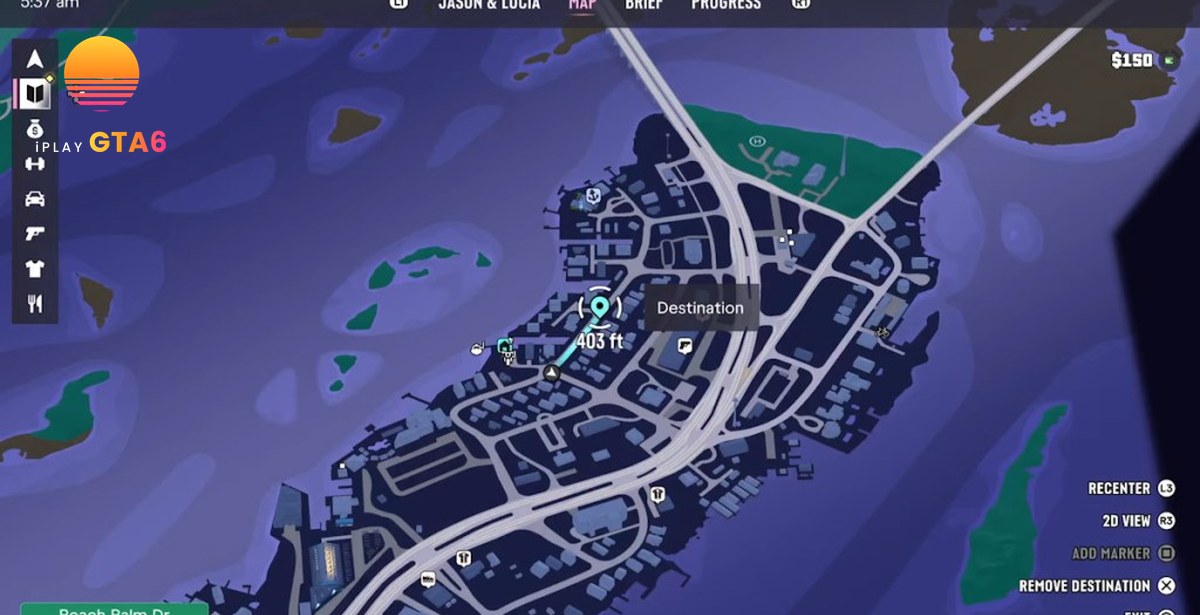
There are just two requirements, and both are absolute. You need to be driving a vehicle of some kind, and you need a destination on the map. Without a waypoint, the Auto Drive prompt will not appear at all. A mission objective with a marker counts as a destination too.
How to Turn On Auto Drive
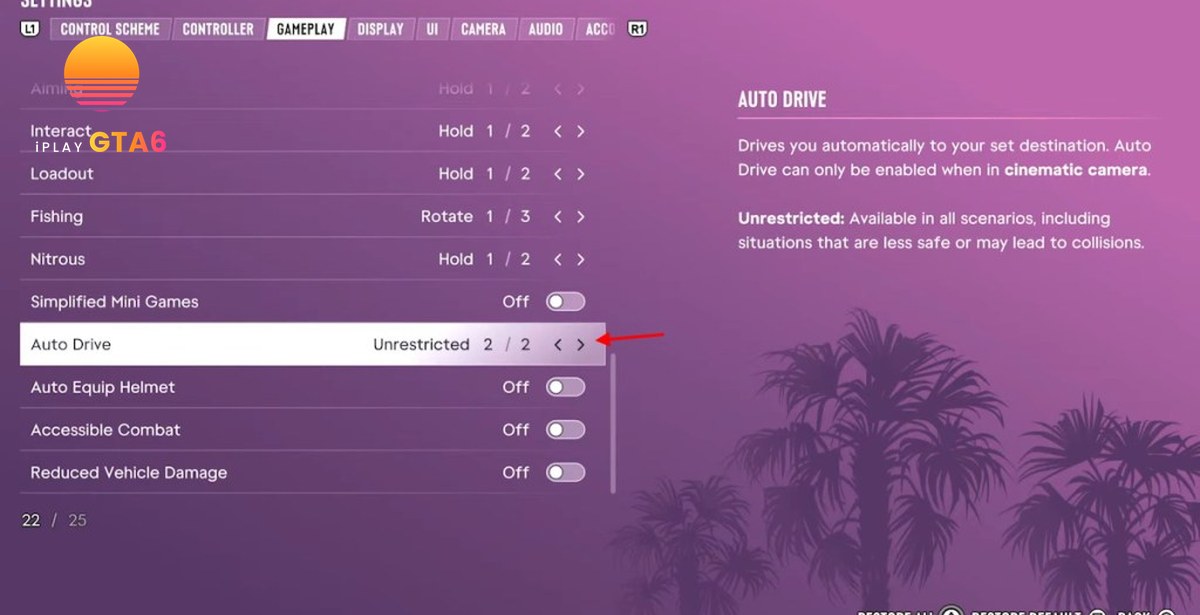
Before you use it for the first time, check one setting. Pause the game, go to Settings, then Gameplay, and find Auto Drive. By default it is Restricted, which only lets you use it on public roads in safe situations. Setting it to Unrestricted lets you use it almost anywhere, including off-road, although the AI is still at its best on roads.
Open the map, pick a location and press X on PS5 or A on Xbox to set a waypoint. No destination means no Auto Drive prompt.
Any car, bike, truck or boat works. Make sure you are on a public road, because the prompt stays greyed out until you are.
Hold Down on the D-pad to open the camera options, and while holding it, press Options on PS5 or Menu on Xbox. The camera switches to cinematic angles you do not directly control.
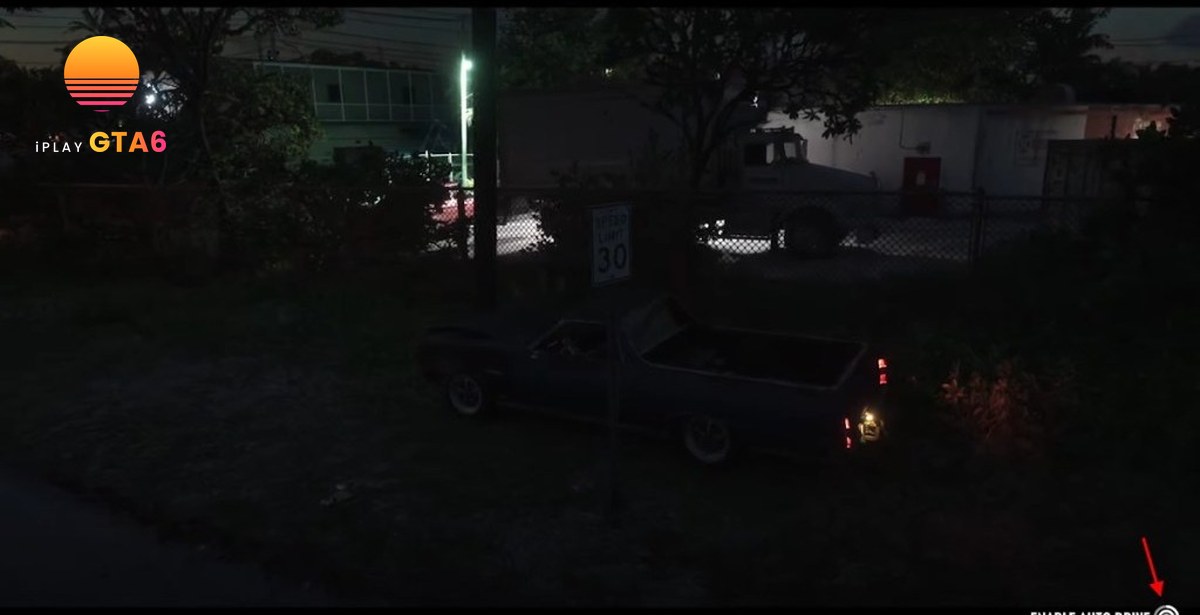
Accelerate slightly with R2 or RT until the Enable Auto Drive prompt appears in the bottom-right corner, then hold Circle on PS5 or B on Xbox. Jason or Lucia takes the wheel.
Use L2 and R2 on PS5, or LT and RT on Xbox, to move between the three speed settings. Speed 2 is the default. The camera moves between cinematic angles: low shots beside the wheels, wide shots from above, and views from inside the vehicle.
One warning from experience: when you switch to the cinematic camera before you switch on Auto Drive, you are still controlling the car yourself. The camera change does not hand over the wheel. If you let go of the controls at that point, you will wrap the car around a tree. Wait for the prompt, hold the button, and only then let go.
The Three Speeds and Taking Back Control
There are three speed settings, 1, 2 and 3, and you change them with L2 and R2 on PlayStation or LT and RT on Xbox. Speed 2 is the default. Whatever speed you pick, your character follows traffic laws, so driving manually is much faster. Auto Drive is a way to get somewhere without doing the driving yourself, not a way to get there faster.
There are two ways to take back control. Hold Circle again on PS5 or B on Xbox while in the cinematic camera, and the prompt changes to disable Auto Drive. Or leave the cinematic camera by holding Down on the D-pad: Auto Drive only works in the cinematic camera, so it switches off with it. Both are instant, so you can grab the wheel the moment something changes.
Conversations carry on as normal while Auto Drive runs, and you are free to look at everything around you as you go. The camera shows the characters doing different things, like Lucia gazing out of the window or Jason with his hands on the wheel. It is the closest GTA 6 comes to a sightseeing mode.
Let Your Partner Drive Instead
There is a second way to stop driving, and it needs no menu at all. When Jason and Lucia are travelling together, you can let your partner take control of the vehicle. Hold Right on the D-pad and press R1 on PS5 or RB on Xbox to switch characters and let the AI drive. If you are sitting in the passenger seat, you can hold Right on the D-pad and press Square on PS5 or X on Xbox to ask your partner to speed up.
Boats have their own version too. Double-tap Triangle on PS5 or Y on Xbox at the helm to switch on boat autopilot, then leave the controls and walk around the deck while the boat keeps cruising. Auto Drive works on boats as well, though it is less reliable on water than on roads, and it will not take you from water to land or from land to water. In either case it only goes as far as the edge of the terrain before switching itself off.
When to Use Auto Drive, and When Not To
Auto Drive is at its best on long, boring journeys across the map, when you want to enjoy the scenery without constantly controlling the vehicle. It is useful for crossing Leonida between missions, for soaking in a part of the map you have not explored, and for giving your hands a break during a long session.
Do not use it when you are in a dangerous situation, like a police chase, or when you are exploring areas without proper roads. The AI takes a slower, more scenic route, and it can get caught in traffic or stuck behind an accident. It observes the rules of the road, which sounds sensible until you are sitting behind a slow truck for three minutes. If you are in a hurry, drive yourself. If you would rather skip the journey entirely, the RydeMe app is the alternative: order a ride through the app and pay the $100 skip fee once inside to reach your destination straight away.
That is the honest trade at the heart of the feature. Auto Drive is free, relaxed, and slow. Fast travel costs money and skips the world. Driving yourself is fastest but demands your attention. Pick the one that fits the trip. And if you are building a garage worth driving across the state for, our best starter cars guide, our lowrider guide and our car meets guide are good next stops. For water trips, our jet ski guide covers the other way to cross Leonida without touching a road.
Quick Questions
How do you turn on Auto Drive in GTA 6?
Set a waypoint, get in a vehicle, hold Down on the D-pad and press Options or Menu to enter Cinematic Mode, then hold Circle on PS5 or B on Xbox when the prompt appears.
Do you need a waypoint for Auto Drive?
Yes. You must mark a destination on your map before entering Cinematic Mode, or the Auto Drive prompt will not appear. A mission objective marker counts too.
How do you change Auto Drive speed?
Use L2 and R2 on PS5 or LT and RT on Xbox to move between the three speed settings. Speed 2 is the default.
How do you turn off Auto Drive in GTA 6?
Hold Circle again on PS5 or B on Xbox, or leave the cinematic camera by holding Down on the D-pad. Auto Drive only works in the cinematic camera.
Does Auto Drive work off-road?
Only if you set Auto Drive to Unrestricted in Settings, then Gameplay. By default it is Restricted to public roads, and the AI is still at its best on roads.
Can your partner drive in GTA 6?
Yes. When Jason and Lucia travel together, hold Right on the D-pad and press R1 or RB to switch characters and let the AI drive.