
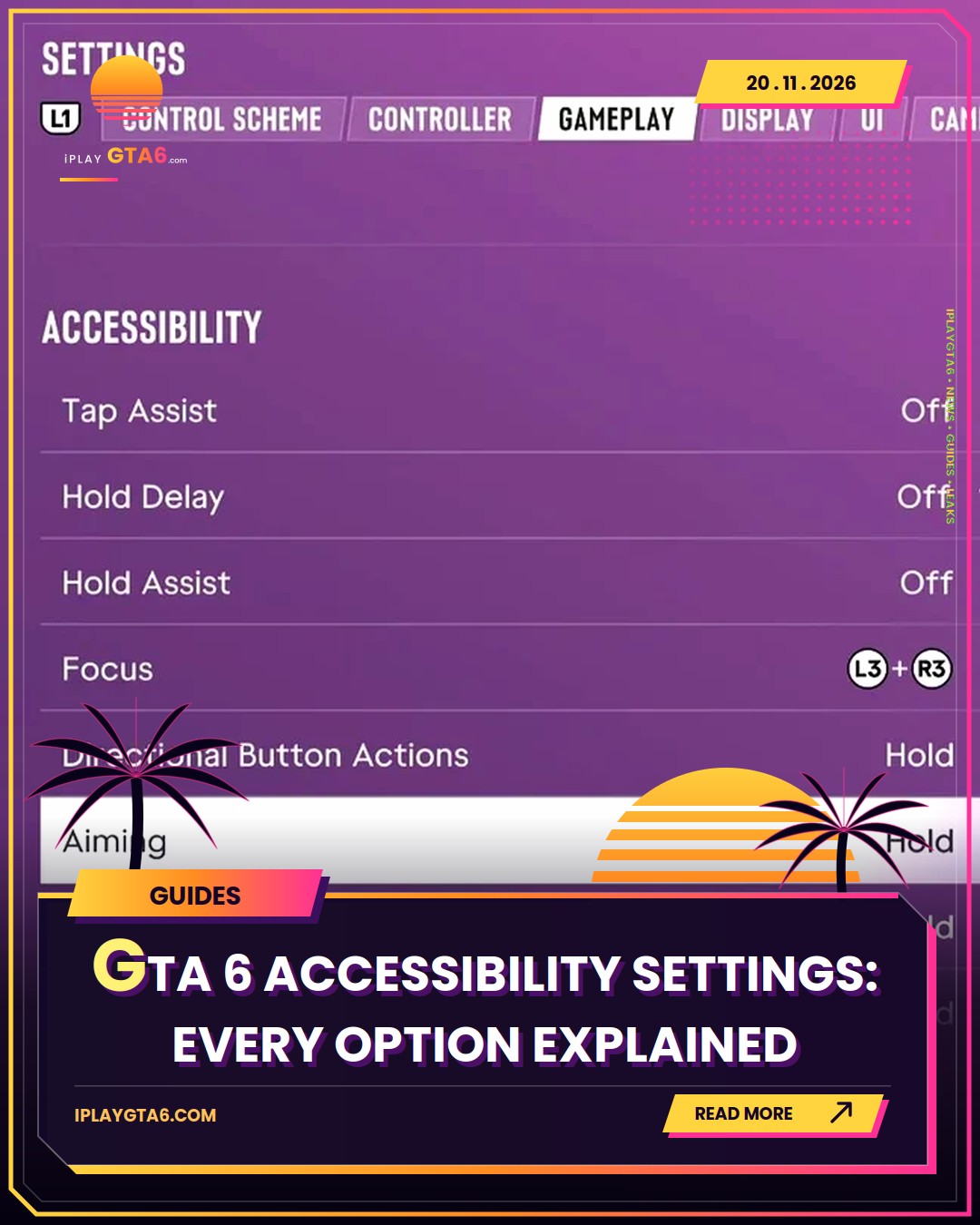
There is no Accessibility tab in GTA 6. The options are real, but spread across six tabs of the settings menu, so most players only find a few by accident. This guide puts the whole list in one place.
Every setting below was verified from the PS5 version, read from the shipped menus by GTA6Map and AllThings.how and cross-checked against Can I Play That? and PowerPyx. Xbox Series X|S is not yet verified.
Where the Options Live
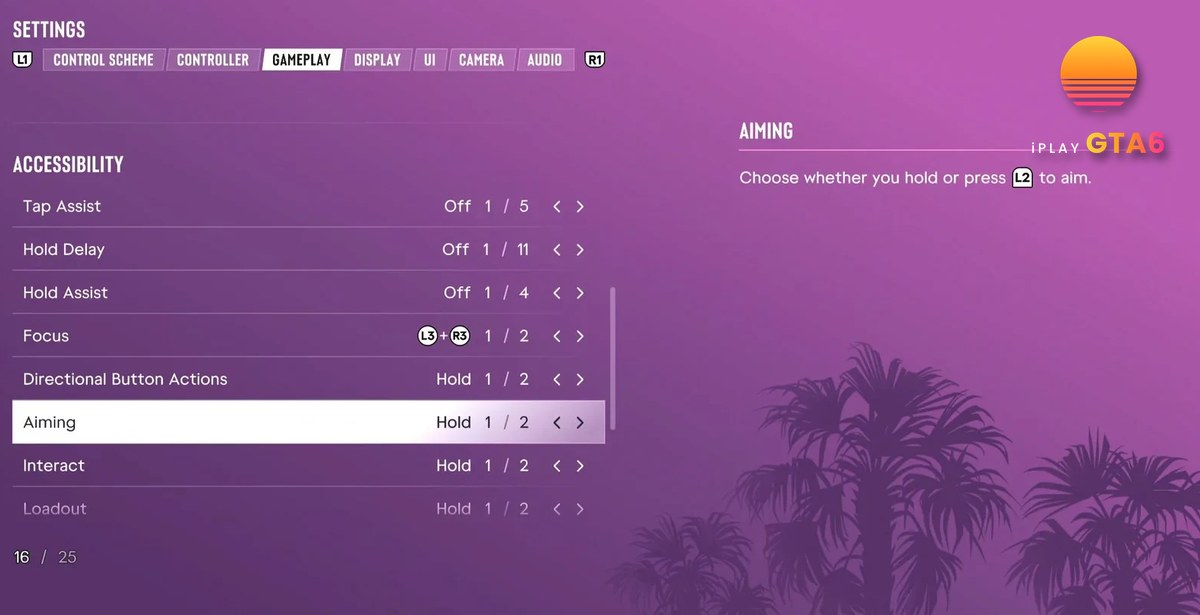
Pause, open Settings, and move between tabs with L1 and R1. The options sit in the Gameplay, UI, Display, Camera, Audio and Controller tabs, and the main group is headed Accessibility inside the Gameplay tab. Before you ever play, the first-start screens offer Screen Narration, UI Text Size and Subtitles, and you can change all three later. Rockstar sent no review copies to accessibility outlets, so early coverage comes from players reading the shipped menus.
Hands and Buttons: Tap Assist, Hold Assist and Press Instead of Hold
Tap Assist is the headline setting: one press can count as 2, 3 or 4 presses, or the action can become a hold instead.
| Setting | Choices | What it does |
|---|---|---|
| Tap Assist | Off, 2x, 3x, 4x, Hold | One press counts as 2, 3 or 4 presses |
| Hold Delay | Off, +25% to +250% | Delays holds so accidental presses do not count |
| Hold Assist | Off, 2x, 3x, 4x | A hold finishes in 2, 3 or 4 times less time |
| Aiming | Hold, Press | Press L2 once to aim instead of holding it |
| Interact | Hold, Press | Press L2 once to interact with people and items |
| Nitrous | Hold, Press | Press L3 once for nitrous instead of holding it |
| Loadout | Hold, Hold and Release | Stays open until you press L1 again |
| Directional Button Actions | Hold, Hold and Release | Same for d-pad holds like the radio |
| Focus | L3 + R3, touch pad | Move focus to the touch pad |
| Fishing | Rotate, Hold, Pull | Rotate the right stick, hold Square, or pull it |
Hold Delay and Hold Assist work as a pair. Hold Delay adds a delay before a hold registers, so a brief accidental press does not count, and Hold Assist shortens the hold itself. The press-instead-of-hold options are the quiet win here: Aiming, Interact and Nitrous each switch from Hold to Press, so one tap of L2 aims your weapon or talks to a person, and one tap of L3 fires the nitrous. Simplified Mini Games eases exercising, hotwiring and basketball, and Auto Equip Helmet handles your helmet on bikes. The fishing reel choice matters too, and our fishing guide covers rods, lures and Cal's challenge.
Outside the Accessibility group, the Gameplay tab holds the aiming help. Targeting has three modes, Lock-On, Partial and Free Aim, with Partial as the default: aim drifts toward a nearby target without locking on. Aim Assist Strength runs from 0 to 5 and starts at 4, and Shooting Assist and Drive-By Assist both start On. Our combat guide covers cover, vitals and winning fights.
Reading the Game: Text Size, Subtitles and Captions
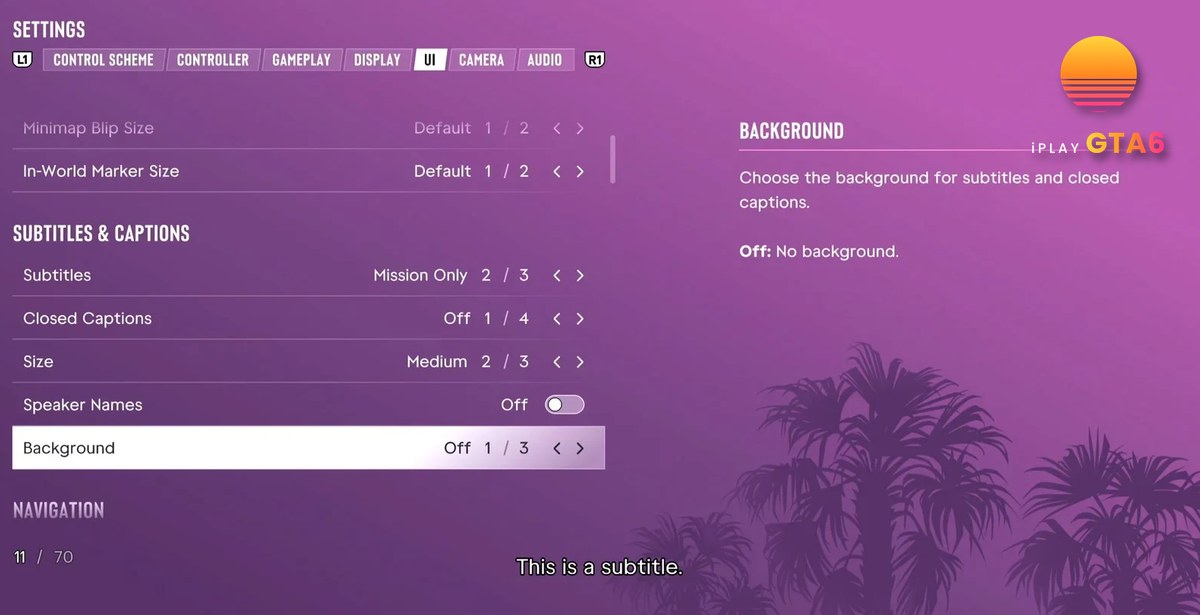
The UI tab holds the reading options. UI Text Size has four sizes, Small, Medium, Large and Extra Large. Subtitles have three modes, Off, Mission Only or On. Closed Captions add text for non-speech sounds, environmental sounds, or both, and they start Off. Size, Speaker Names and Background shape each line, previewed with a sample line, "This is a subtitle."
The same tab holds the map and marker sizes: Map Blip, Minimap Blip and In-World Marker sizes each have a larger version, and Minimap Size enlarges the minimap. Our map page shows the whole of Leonida in one place. Threat Indicators and Damage Region Highlights, both on by default, flag nearby threats and incoming damage. Simplified Mini Games also covers gym sessions, so it pairs with our gym guide on strength and cardio.
Seeing Clearly: Colorblind Modes and High Contrast
Color Adjustments in the UI tab has the three colorblind modes: Protan, Deutan and Tritan. The Display tab adds High Contrast Shaders, which color characters, objects and interactions, and Focus Trail Colorblind Mode, which boosts the colors on focus trails. Brightness Reduction softens bright lights without changing the HUD, and Flashbang swaps a bright flash for a dark one. Dismemberment and Blood and Gore Intensity can both be turned down in the same tab.
Hearing: Narration, Mono Audio and Tinnitus
Screen Narration reads out most menus and UI text, and Audio Descriptions describe cutscenes. Both are English only. Can I Play That? rates them the best features for blind and low-vision players. Mono Audio puts the same audio in both channels, and Tinnitus Reduction cuts down the ringing after explosions. The Audio tab has separate sliders for Dialogue, Music, SFX, UI and Media, so you can turn dialogue up over everything else.
Comfort: Motion Sickness and Screen Effects
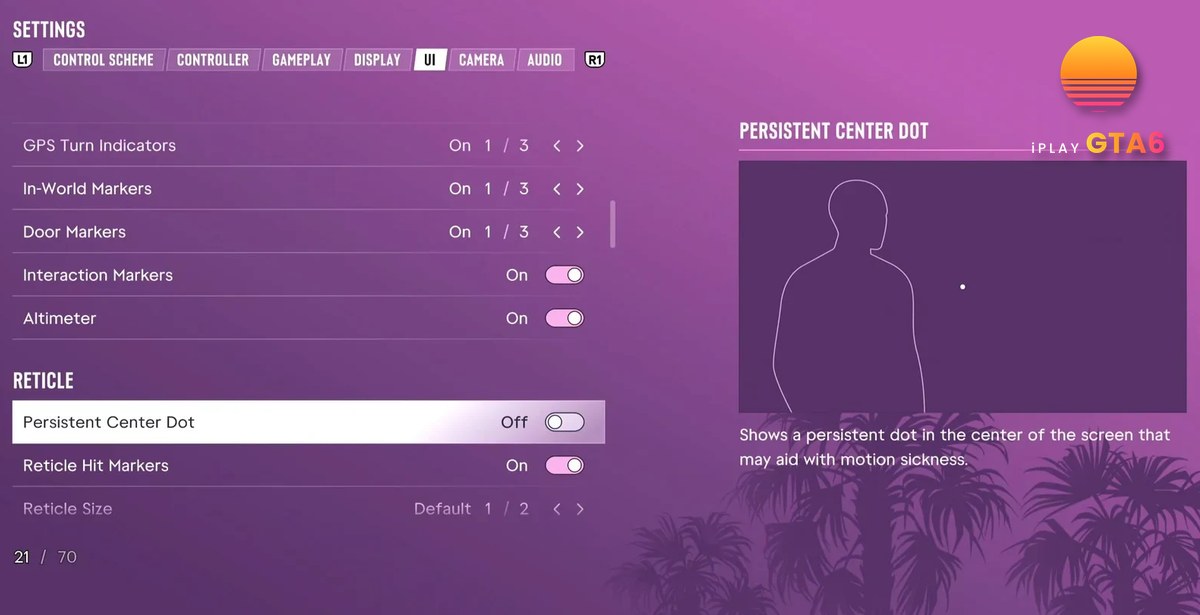
Persistent Center Dot is in the UI tab under Reticle: a fixed dot that may aid with motion sickness. Turn it on first if moving cameras make you feel sick. The Camera tab holds the rest under Comfort: Camera Shake and Weapon Sway both start On, Camera Bob is a slider starting at 10, and Motion Blur Strength sits in the Display tab starting at 3. Our best settings guide covers display, controls and motion blur in short.
Controllers: Schemes, Deadzones and Sensitivity
The Control Scheme tab has three presets, Default, Classic and Left-Handed, and Left-Handed swaps the sticks and shoulder buttons. The Controller tab holds adjustable stick deadzones, inverted controls, look and aim sensitivity starting at 7, and vibration and haptics strength. Full button remapping has not been confirmed: Can I Play That? looked for it and could not confirm it, so do not count on re-binding buttons in the game. Our controls guide lists every button change in the default layout.
Difficulty, Without a Difficulty Setting
GTA 6 has no difficulty level. The two settings that change how hard the game is sit in the Gameplay tab, and the game warns that each will significantly change the balance of gameplay. Accessible Combat reduces enemy health and the damage your character takes, and Reduced Vehicle Damage reduces the damage your vehicle takes. PowerPyx lists exactly these two for making the game easier, and suggests them for a hard mission or collectible cleanup after the story.
Quick Questions
Does GTA 6 have an Accessibility tab in Settings?
No. They are spread across the Gameplay, UI, Display, Camera, Audio and Controller tabs.
How do I stop having to mash buttons in GTA 6?
Set Tap Assist under Settings, Gameplay, Accessibility. One press can count as 2, 3 or 4 presses.
Does GTA 6 have an easy mode?
No. But Accessible Combat lowers enemy health and damage taken, and Reduced Vehicle Damage protects your vehicle.
Does GTA 6 have colorblind settings?
Yes. The UI tab has Protan, Deutan and Tritan modes, and the Display tab adds focus trail colors and high contrast shaders.
Does GTA 6 help with motion sickness?
Yes. Turn on Persistent Center Dot, turn off Camera Shake and Weapon Sway, and lower Camera Bob and Motion Blur.
Can I remap buttons in GTA 6?
Not confirmed. The game offers Default, Classic and Left-Handed schemes, plus deadzones and sensitivity sliders.